Board Web Setup Guide
This guide will help you set up the Board Web project locally. Follow these steps carefully to get started.
Link to Github project: https://github.com/jod-app/board-web
Prerequisites
- Git installed on your machine
- Node.js version 22.15.0 (LTS) installed
- VS Code with recommended extensions
- SSH access to GitHub configured for the company
Project Setup
1. Clone the Repository
First, clone the project repository using SSH:
git clone git@github.com:jod-app/board-web.git
cd board-web
2. Install Dependencies
Make sure you're using the correct Node.js version (22.15.0) before installing dependencies:
# Check Node.js version
node -v  # Should show v22.15.0

# Install dependencies
npm install
3. Run the Project Locally
This is a Vite React JavaScript project. To start the development server:
npm run dev
After running this command, you should see output similar to:
> dev
> react-router dev

7:42:05 AM [vite] (client) Re-optimizing dependencies because lockfile has changed
  ➜  Local:   http://localhost:5173/
  ➜  Network: use --host to expose
  ➜  press h + enter to show help
Open your browser and navigate to http://localhost:5173 to see the application running.
ESLint Setup
1. Install VS Code Extensions
Install the following VS Code extensions:
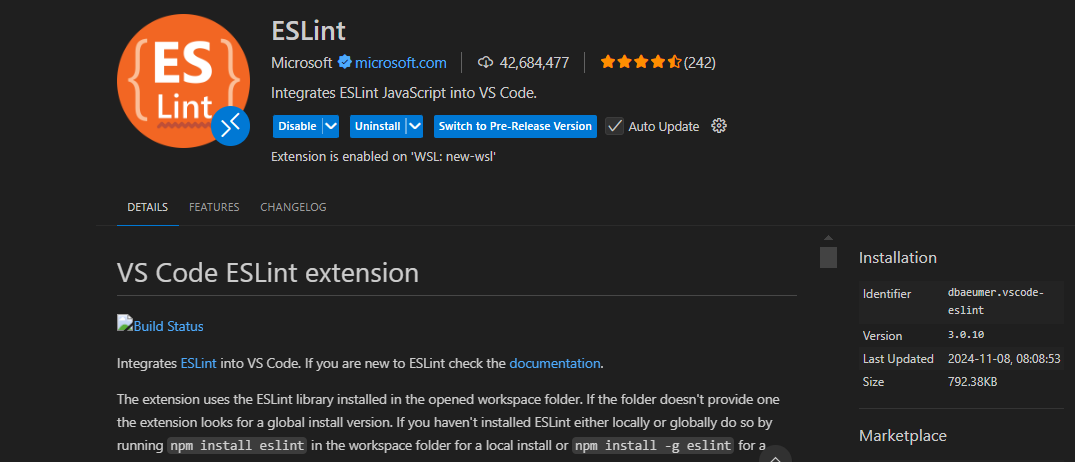
- ESLint (dbaeumer.vscode-eslint)
2. Configure VS Code Settings
Update your VS Code settings (File > Preferences > Settings or Ctrl+,) by adding the following to your settings.json:
"[javascript][javascriptreact][typescript][typescriptreact]": {
  "editor.formatOnSave": true,
  "editor.codeActionsOnSave": {
    "source.fixAll.eslint": "always"
  },
  "editor.defaultFormatter": "dbaeumer.vscode-eslint"
},
3. Test ESLint Configuration
- Run the linter to check for any existing issues:
npm run lint
- Test the auto-formatting by creating a file with accessibility issues. Here's an example:
Before auto-format:
function Button() {
  return <button onClick={() => console.log("clicked")}>Click me</button>;
}
After auto-format (ESLint will enforce accessibility rules):
function Button() {
  return (
    <button
      onClick={() => console.log("clicked")}
      type="button"
      aria-label="Click me"
    >
      Click me
    </button>
  );
}
ESLint Plugins Explained
The project uses several ESLint plugins to enforce code quality and consistency:
eslint-plugin-align-assignments
This plugin enforces consistent alignment of assignment operators (=) in object literals and variable declarations.
For detailed documentation and rules, visit: eslint-plugin-align-assignments
eslint-plugin-react
This plugin enforces React-specific linting rules to ensure best practices in React components.
For detailed documentation and rules, visit: eslint-plugin-react
eslint-plugin-react-hooks
This plugin enforces the Rules of Hooks in React, ensuring that hooks are used correctly.
For detailed documentation and rules, visit: eslint-plugin-react-hooks