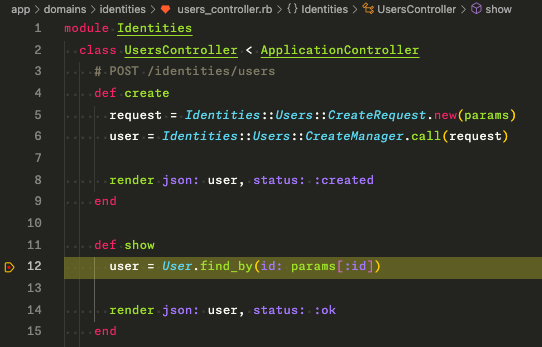
Debugging
launch.json
Create a .vscode/launch.json in the project root.
{
  // Use IntelliSense to learn about possible attributes.
  // Hover to view descriptions of existing attributes.
  // For more information, visit: https://go.microsoft.com/fwlink/?linkid=830387
  "version": "0.2.0",
  "configurations": [
    {
      "type": "ruby_lsp",
      "name": "Rails Server with Debugger",
      "request": "launch",
      "program": "${workspaceRoot}/bin/rails server -p 3000",
      "env": {
        "RUBY_DEBUG_OPEN": "true",
        "RUBY_DEBUG_NO_RELINE": "true"
      }
    },
    {
      "type": "ruby_lsp",
      "name": "Debug script",
      "request": "launch",
      "program": "ruby ${file}"
    },
    {
      "type": "ruby_lsp",
      "name": "Debug test",
      "request": "launch",
      "program": "ruby -Itest ${relativeFile}"
    },
    {
      "type": "ruby_lsp",
      "name": "Attach debugger",
      "request": "attach"
    }
  ]
}
The main config that you will run when debugging is the Rails Server with Debugger config.
- starts the rails server on port 3000
- pass env variables to the process
- RUBY_DEBUG_OPEN: tells the debugger to wait for a connection (similar to the -O flag in rdbg)
- RUBY_DEBUG_NO_RELINE: disables line editing (similar to the -n flag in rdbg)
Test the config
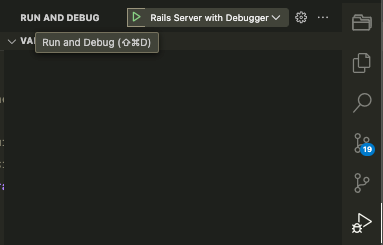
- Click on the
Run and Debugon the sidebar.
- Select
Rails Server with Debuggerfrom the dropdown - Click the green play button to start the debugger
- Click on the
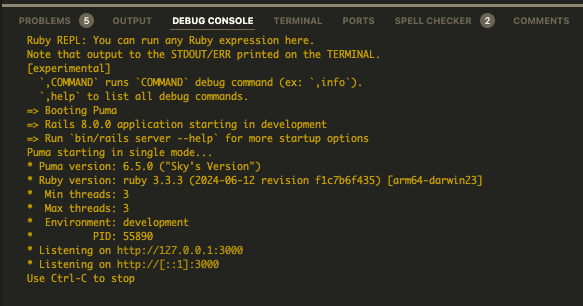
Debug Consoletab at the bottom panel of vscode
- You should see the server running
- When you make a request to the rails server, you should see a breakpoint in the debugger.