React Hook Form and Zod Onboarding
This onboarding will help you understand how to use React Hook Form with Zod validation in our Jod Board project. Please note that this might not be the best guide, so if other engineers find better ways, feel free to add or update this documentation.
Table of Contents
This is a comprehensive guide that covers:
- Introduction to React Hook Form and Zod
- Creating Forms with React Hook Form
- Zod Schema Validation
- Using React Hook Form and Zod Together
- Displaying Zod Schema Error Messages
- Loading Data into Forms
- Handling Backend Errors
- Creating Reusable Form Fields
Scroll down to find each section.
Quick Start
If you want to quickly get started with React Hook Form and Zod in your project, follow these steps:
- Install the required dependencies:
npm install react-hook-form @hookform/resolvers zod
- Import the necessary components:
import { useForm } from "react-hook-form";
import { zodResolver } from "@hookform/resolvers/zod";
import { z } from "zod";
- Create a basic form with validation:
const applicantSchema = z.object({
  first_name: z.string().min(1, "First name is required"),
  last_name: z.string().min(1, "Last name is required"),
  email: z.string().min(1, "Email is required").email("Invalid email address"),
});

function ApplicantForm() {
  const {
    register,
    handleSubmit,
    formState: { errors },
  } = useForm({
    resolver: zodResolver(applicantSchema),
  });

  const onSubmit = (data) => {
    console.log(data);
  };

  return (
    <form onSubmit={handleSubmit(onSubmit)}>
      <Form.Group className="mb-3">
        <Form.Label>First Name</Form.Label>
        <Form.Control
          {...register("first_name")}
          type="text"
          isInvalid={!!errors.first_name}
        />
        <Form.Control.Feedback type="invalid">
          {errors.first_name?.message}
        </Form.Control.Feedback>
      </Form.Group>
      {/* Add more form fields */}
      <Button type="submit">Submit</Button>
    </form>
  );
}
Key Concepts
This onboarding covers several important concepts for working with forms in our application:
- Form Creation: Learn how to create forms using React Hook Form
- Schema Validation: Understand how to define validation rules with Zod
- Error Handling: Discover techniques for displaying validation errors
- Data Loading: See how to load existing data into forms
- Backend Integration: Learn how to handle backend errors
- Reusable Components: Create reusable form field components for consistency
For more detailed information and examples, please refer to the individual sections in this onboarding.
sidebar_position: 2
Introduction to React Hook Form and Zod
What is React Hook Form?
React Hook Form is a library for managing forms in React applications. It provides a way to handle form state, validation, and submission in a more efficient and less verbose manner compared to traditional form handling methods. Key features of React Hook Form include:
- Performance: Minimizes re-renders and uses uncontrolled components
- Easy to use: Simple API with hooks-based approach
- Validation: It supports both synchronous and asynchronous validation, and can be integrated with validation libraries.
For more information, visit the React Hook Form documentation.
What is Zod?
Zod is a powerful schema validation library designed primarily for TypeScript, but it is equally effective in JavaScript environments. It is often referred to as "TypeScript-first schema validation with static type inference," as highlighted on its official website. Key features of Zod include:
-
Schema Definition: Zod allows you to define schemas for your data structures easily. This ensures that your data adheres to specific formats and types, enhancing data integrity.
-
Runtime Validation: While Zod excels in TypeScript by inferring types, its core functionality lies in runtime validation. This means it can validate data in real-time, regardless of whether you are using TypeScript or JavaScript.
-
Detailed Error Messages: Zod generates comprehensive error messages that help developers quickly identify and resolve issues, making debugging more straightforward.
-
Integration with Libraries: Zod integrates seamlessly with popular libraries like React Hook Form, enhancing form handling capabilities in your applications.
-
No Type Overhead in JavaScript: If you are using JavaScript, you can leverage Zod's validation features without worrying about type inference, allowing you to focus solely on data validation.
Why Use React Hook Form Together with Zod?
Combining React Hook Form with Zod creates a powerful synergy that enhances form management in React applications. Here are several compelling reasons to use them together:
-
Robust Validation: Zod's schema validation capabilities allow you to implement complex validation rules effortlessly, ensuring that user input meets your application's requirements.
-
Enhanced Developer Experience: The integration reduces boilerplate code, allowing developers to write cleaner and more maintainable code. Clear error messages from Zod further improve the development process.
-
Maintainable Codebase: By reusing schemas and form components, you can create a more organized and maintainable codebase. This modular approach simplifies updates and modifications.
-
Optimized Performance: React Hook Form is designed for performance, minimizing re-renders and optimizing form handling. When paired with Zod's efficient validation, you achieve a responsive user experience.
-
Consistent Form Handling: Using Zod with React Hook Form establishes a standardized approach to form handling across your application, making it easier for teams to collaborate and maintain code.
Can We Use Zod and React Hook Form in a React JavaScript Project?
Absolutely! While Zod is designed with TypeScript in mind, it is fully compatible with JavaScript projects. Here's why you can confidently use Zod and React Hook Form together in a JavaScript environment:
-
Runtime Validation: Zod's primary function is runtime validation, which works seamlessly in JavaScript. You can validate user input without needing TypeScript's type inference.
-
Consistent Syntax: The schema definition syntax remains the same in both JavaScript and TypeScript, allowing you to define your data structures without any additional complexity.
-
Detailed Error Handling: The error messages generated by Zod are beneficial in any language, providing clarity on validation issues regardless of whether you are using TypeScript or JavaScript.
-
No Type Dependencies: In a JavaScript project, you can ignore the type inference features of Zod and utilize it solely for its validation capabilities, making it a lightweight addition to your project.
Schema Example
// Example of an applicant form schema
const applicantSchema = z.object({
  first_name: z.string().min(1, "First name is required"),
  last_name: z.string().min(1, "Last name is required"),
  display_name: z.string().min(1, "Display name is required"),
  date_of_birth: z.date().refine(
    (date) => {
      const today = new Date();
      const age = today.getFullYear() - date.getFullYear();
      return age >= 18;
    },
    { message: "You must be at least 18 years old" }
  ),
  gender: z.enum(["MALE", "FEMALE"], {
    errorMap: () => ({ message: "Please select a gender" }),
  }),
  contact_number: z
    .string()
    .min(1, "Contact number is required")
    .regex(/^\+?[1-9]\d{1,14}$/, "Invalid phone number"),
  email: z.string().min(1, "Email is required").email("Invalid email address"),
  referral_code: z.string().optional(),
  new_job_notification: z.boolean().default(false),
  avatar: z
    .instanceof(File)
    .refine(
      (file) => file.size <= 2 * 1024 * 1024,
      "File size must be less than 2MB"
    )
    .refine(
      (file) => file.type.startsWith("image/"),
      "Only image files are allowed"
    )
    .optional(),
  // rest of applicant attribute
});
In the next sections, we'll dive deeper into how to set up and use these libraries in your project.
sidebar_position: 2
Creating Forms with React Hook Form
This guide will show you how to create forms using React Hook Form in our job portal application. We'll cover the fundamental structure of forms built with React Hook Form, focusing on three key aspects: form setup, form rendering, and form submission.
Understanding Form Structure
Before diving into specific examples, it's important to understand the basic structure of forms built with React Hook Form. This structure consists of three main parts:
- Form Setup: Using React Hook Form's
useFormhook to manage form state - Form Rendering: Creating the UI components that connect to the form state
- Form Submission: Handling the submission of form data
This pattern ensures that your forms are user-friendly, with validation happening automatically based on your configuration.
Basic Form Structure
Every form in our application follows this basic structure:
import { useForm } from "react-hook-form";
import { Form, Button } from "react-bootstrap";

function MyForm() {
  const {
    register,
    handleSubmit,
    formState: { errors },
  } = useForm();

  const onSubmit = (data) => {
    // Handle form submission
    console.log(data);
  };

  return <Form onSubmit={handleSubmit(onSubmit)}>{/* Form fields */}</Form>;
}
Login Form Example
Let's create a simple login form to demonstrate the three key aspects of form creation with React Hook Form.
1. Form Setup
The first step is to set up the form using the useForm hook. This hook provides methods and properties for managing form state.
import { useForm } from "react-hook-form";

function LoginForm() {
  const {
    register,
    handleSubmit,
    formState: { errors, isSubmitting },
  } = useForm({
    defaultValues: {
      email: "",
      password: "",
      rememberMe: false,
    },
  });

  // Form submission handler
  const onSubmit = (data) => {
    console.log(data);
    // Here you would typically make an API call to authenticate the user
  };

  return (
    // Form rendering will go here
  );
}
2. Form Rendering
The next step is to render the form fields. We use the register function to connect each form field to React Hook Form.
import { useForm } from "react-hook-form";
import { Form, Button } from "react-bootstrap";

function LoginForm() {
  const {
    register,
    handleSubmit,
    formState: { errors, isSubmitting },
  } = useForm({
    defaultValues: {
      email: "",
      password: "",
      rememberMe: false,
    },
  });

  const onSubmit = (data) => {
    console.log(data);
    // Here you would typically make an API call to authenticate the user
  };

  return (
    <Form onSubmit={handleSubmit(onSubmit)}>
      <Form.Group className="mb-3">
        <Form.Label>Email</Form.Label>
        <Form.Control
          {...register("email", {
            required: "Email is required",
            pattern: {
              value: /^[A-Z0-9._%+-]+@[A-Z0-9.-]+\.[A-Z]{2,}$/i,
              message: "Invalid email address",
            },
          })}
          type="email"
          placeholder="Enter your email"
          isInvalid={!!errors.email}
        />
        <Form.Control.Feedback type="invalid">
          {errors.email?.message}
        </Form.Control.Feedback>
      </Form.Group>

      <Form.Group className="mb-3">
        <Form.Label>Password</Form.Label>
        <Form.Control
          {...register("password", {
            required: "Password is required",
            minLength: {
              value: 8,
              message: "Password must be at least 8 characters",
            },
          })}
          type="password"
          placeholder="Enter your password"
          isInvalid={!!errors.password}
        />
        <Form.Control.Feedback type="invalid">
          {errors.password?.message}
        </Form.Control.Feedback>
      </Form.Group>

      <Form.Group className="mb-3">
        <Form.Check
          {...register("rememberMe")}
          type="checkbox"
          label="Remember me"
        />
      </Form.Group>

      <Button type="submit" disabled={isSubmitting}>
        {isSubmitting ? "Logging in..." : "Login"}
      </Button>
    </Form>
  );
}
3. Form Submission
The final step is to handle form submission. We use the handleSubmit function to wrap our submission handler, which ensures that the form is only submitted if all validations pass.
import { useForm } from "react-hook-form";
import { Form, Button } from "react-bootstrap";

function LoginForm() {
  const {
    register,
    handleSubmit,
    formState: { errors, isSubmitting },
    setError,
  } = useForm({
    defaultValues: {
      email: "",
      password: "",
      rememberMe: false,
    },
  });

  const onSubmit = async (data) => {
    try {
      // Simulate API call
      const response = await fetch("/api/login", {
        method: "POST",
        headers: {
          "Content-Type": "application/json",
        },
        body: JSON.stringify(data),
      });

      if (!response.ok) {
        const errorData = await response.json();

        // Handle specific field errors
        if (errorData.errors) {
          Object.entries(errorData.errors).forEach(([field, message]) => {
            setError(field, {
              type: "server",
              message: message,
            });
          });
        }

        // Handle general error
        if (errorData.message) {
          setError("root", {
            type: "server",
            message: errorData.message,
          });
        }

        return;
      }

      // Handle successful login
      const userData = await response.json();
      console.log("Login successful:", userData);
      // Redirect or update app state
    } catch (error) {
      console.error("Login failed:", error);
      setError("root", {
        type: "server",
        message: "An error occurred during login. Please try again.",
      });
    }
  };

  return (
    <Form onSubmit={handleSubmit(onSubmit)}>
      {errors.root && (
        <div className="alert alert-danger">{errors.root.message}</div>
      )}

      <Form.Group className="mb-3">
        <Form.Label>Email</Form.Label>
        <Form.Control
          {...register("email", {
            required: "Email is required",
            pattern: {
              value: /^[A-Z0-9._%+-]+@[A-Z0-9.-]+\.[A-Z]{2,}$/i,
              message: "Invalid email address",
            },
          })}
          type="email"
          placeholder="Enter your email"
          isInvalid={!!errors.email}
        />
        <Form.Control.Feedback type="invalid">
          {errors.email?.message}
        </Form.Control.Feedback>
      </Form.Group>

      <Form.Group className="mb-3">
        <Form.Label>Password</Form.Label>
        <Form.Control
          {...register("password", {
            required: "Password is required",
            minLength: {
              value: 8,
              message: "Password must be at least 8 characters",
            },
          })}
          type="password"
          placeholder="Enter your password"
          isInvalid={!!errors.password}
        />
        <Form.Control.Feedback type="invalid">
          {errors.password?.message}
        </Form.Control.Feedback>
      </Form.Group>

      <Form.Group className="mb-3">
        <Form.Check
          {...register("rememberMe")}
          type="checkbox"
          label="Remember me"
        />
      </Form.Group>

      <Button type="submit" disabled={isSubmitting}>
        {isSubmitting ? "Logging in..." : "Login"}
      </Button>
    </Form>
  );
}
Common useForm Features
React Hook Form's useForm hook provides many useful methods and properties. Here are some of the most commonly used ones:
-
register: Connects form inputs to React Hook Form. It returns properties that need to be spread onto your input elements, along with validation rules.
-
handleSubmit: A function that wraps your form submission handler. It ensures that the form is only submitted if all validations pass.
-
reset: Resets the form to its default values or to the values you provide. Useful for clearing the form after submission.
-
setValue: Sets the value of a form field programmatically. Useful for updating form fields based on external events or data.
-
setError: Sets an error for a specific field or for the entire form. Useful for handling server-side validation errors.
-
watch: Observes form field values and returns the current value. Useful for conditional rendering or validation based on other field values.
-
isSubmitting: A boolean that indicates whether the form is currently being submitted. Useful for disabling the submit button during submission.
-
isDirty: A boolean that indicates whether any form field has been modified from its default value. Useful for enabling/disabling buttons based on form changes.
For a complete list of all available methods and properties, refer to the React Hook Form documentation.
sidebar_position: 3
Zod Schema Validation
Zod is a schema validation library that provides a powerful and flexible way to define and validate data structures. In our job portal application, we use Zod to create validation schemas for our forms, ensuring that user input meets our requirements before submission.
Understanding Zod Schemas
A Zod schema is a blueprint that defines the shape and constraints of your data. It allows you to:
- Define the expected structure of your data
- Specify validation rules for each field
- Provide custom error messages
- Create reusable validation components
When combined with React Hook Form, Zod provides a seamless way to validate form data with clear error messages.
Basic Schema Structure
A Zod schema typically follows this structure:
const mySchema = z.object({
  fieldName: z.type().validationRule().anotherRule(),
  anotherField: z.type().validationRule(),
  // ... more fields
});
The schema is defined using the z.object() method, which creates an object schema. Inside this object, you define each field using the appropriate Zod type (like z.string(), z.number(), etc.) and chain validation rules to it.
Available Validation Types
Zod provides a wide range of validation types and rules. For a complete list of available validations, refer to the official Zod documentation.
Common Validation Types
- String:
z.string() - Number:
z.number() - Boolean:
z.boolean() - Date:
z.date() - Array:
z.array(z.type()) - Enum:
z.enum(["value1", "value2", "value3"]) - Object:
z.object({...}) - Optional:
.optional() - Default value:
.default(value)
Creating Effective Schemas
Basic Example
Here's a simple example of a login form schema:
const loginSchema = z.object({
  email: z
    .string()
    .min(1, "Email address is required")
    .email("Please enter a valid email address"),

  password: z
    .string()
    .min(8, "Password must be at least 8 characters long")
    .regex(
      /^(?=.*[a-z])(?=.*[A-Z])(?=.*\d)(?=.*[@$!%*?&])[A-Za-z\d@$!%*?&]{8,}$/,
      "Password must include at least one uppercase letter, one lowercase letter, one number, and one special character"
    ),

  rememberMe: z.boolean().default(false),
});
Schema Composition
You can create reusable schemas to maintain consistency across your application:
// Base schemas
const nameSchema = z
  .string()
  .min(1, "Name is required")
  .max(100, "Name must be less than 100 characters");

const emailSchema = z
  .string()
  .min(1, "Email is required")
  .email("Invalid email address");

// Composed schemas
const userSchema = z.object({
  firstName: nameSchema,
  lastName: nameSchema,
  email: emailSchema,
});
Custom Validation
For more complex validation rules, use the refine method:
const passwordSchema = z
  .string()
  .min(8, "Password must be at least 8 characters long")
  .refine(
    (password) => /[A-Z]/.test(password),
    "Password must contain at least one uppercase letter"
  )
  .refine(
    (password) => /[a-z]/.test(password),
    "Password must contain at least one lowercase letter"
  )
  .refine(
    (password) => /[0-9]/.test(password),
    "Password must contain at least one number"
  )
  .refine(
    (password) => /[^A-Za-z0-9]/.test(password),
    "Password must contain at least one special character"
  );
Conditional Validation
You can create conditional validation rules based on the values of other fields:
const jobPostSchema = z
  .object({
    jobType: z.enum(["FULL_TIME", "PART_TIME", "CONTRACT"]),
    contractDuration: z.number().optional(),
  })
  .refine(
    (data) => {
      if (data.jobType === "CONTRACT") {
        return data.contractDuration !== undefined;
      }
      return true;
    },
    {
      message: "Contract duration is required for contract jobs",
      path: ["contractDuration"],
    }
  );
Writing Effective Error Messages
Error messages are a critical part of form validation. Well-written error messages help users understand what went wrong and how to fix it. Here are some guidelines for writing effective error messages:
Good Error Messages
Good error messages are:
-
Clear and Specific: They explain exactly what the problem is and what needs to be fixed.
// Good
z.string().min(1, "Email address is required");
z.string().email(
  "Please enter a valid email address (e.g., user@example.com)"
); -
Actionable: They tell the user what to do to fix the problem.
// Good
z.string().min(8, "Password must be at least 8 characters long");
z.number().min(18, "You must be at least 18 years old to register"); -
User-Friendly: They use language that users can understand, avoiding technical jargon.
// Good
z.string().regex(
  /^[A-Za-z\s]+$/,
  "Name can only contain letters and spaces"
);
z.date().min(new Date(), "Please select a future date"); -
Consistent: They follow a consistent format and tone throughout the form.
// Good - Consistent format
z.string().min(1, "First name is required");
z.string().min(1, "Last name is required");
z.string().min(1, "Email address is required");
Bad Error Messages
Bad error messages are:
-
Vague or Generic: They don't provide enough information about the problem.
// Bad
z.string().min(1, "Required");
z.string().email("Invalid"); -
Technical or Jargon-Filled: They use technical terms that users may not understand.
// Bad
z.string().regex(
  /^[A-Za-z\s]+$/,
  "Input must match regex pattern /^[A-Za-zs]+$/"
);
z.date().min(new Date(), "Date must be greater than current timestamp"); -
Negative or Blaming: They make the user feel bad about making a mistake.
// Bad
z.string().min(8, "Your password is too short and weak");
z.number().min(18, "You are too young to use this service"); -
Inconsistent: They use different formats or tones for different fields.
// Bad - Inconsistent format
z.string().min(1, "First name is required");
z.string().min(1, "Please enter your last name");
z.string().min(1, "Email: Required field");
Examples of Improving Error Messages
Here are some examples of how to improve error messages:
// Before
const nameSchema = z.string().min(1, "Required");

// After
const nameSchema = z.string().min(1, "Please enter your name");

// Before
const emailSchema = z.string().email("Invalid email");

// After
const emailSchema = z
  .string()
  .email("Please enter a valid email address (e.g., user@example.com)");

// Before
const passwordSchema = z.string().min(8, "Password too short");

// After
const passwordSchema = z
  .string()
  .min(8, "Password must be at least 8 characters long");

// Before
const ageSchema = z.number().min(18, "Must be 18+");

// After
const ageSchema = z
  .number()
  .min(18, "You must be at least 18 years old to register");
Best Practices
- Error Messages: Provide clear, user-friendly error messages
- Schema Organization: Group related schemas in separate files
- Validation Rules: Keep validation rules consistent across similar fields
- Custom Validation: Use
refinefor complex validation rules - Schema Composition: Reuse common schemas to maintain consistency
- Optional Fields: Mark optional fields with
.optional() - Default Values: Use
.default()for fields with default values
sidebar_position: 4
Using React Hook Form and Zod Together
This guide explains how to integrate React Hook Form with Zod for form validation in your project. We'll use a simple login form as an example and compare it with React Hook Form's default validation approach.
Creating a Login Form with React Hook Form and Zod
1. Schema Definition
First, let's define our login form schema using Zod:
import { z } from "zod";

export const loginSchema = z.object({
  email: z.string().min(1, "Email is required").email("Invalid email address"),
  password: z
    .string()
    .min(8, "Password must be at least 8 characters")
    .regex(
      /^(?=.*[a-z])(?=.*[A-Z])(?=.*\d)(?=.*[@$!%*?&])[A-Za-z\d@$!%*?&]{8,}$/,
      "Password must contain at least one uppercase letter, one lowercase letter, one number, and one special character"
    ),
  rememberMe: z.boolean().default(false),
});
2. Form Component
Now, let's create a login form component using React Hook Form with our Zod schema:
import React from "react";
import { useForm } from "react-hook-form";
import { zodResolver } from "@hookform/resolvers/zod";
import { loginSchema } from "./login.schema";
import { Form, Button } from "react-bootstrap";

const LoginForm = ({ onSubmit }) => {
  const {
    register,
    handleSubmit,
    formState: { errors, isSubmitting },
  } = useForm({
    resolver: zodResolver(loginSchema),
    defaultValues: {
      email: "",
      password: "",
      rememberMe: false,
    },
  });

  return (
    <Form onSubmit={handleSubmit(onSubmit)}>
      <Form.Group className="mb-3">
        <Form.Label>Email</Form.Label>
        <Form.Control
          type="email"
          placeholder="Enter your email"
          {...register("email")}
          isInvalid={!!errors.email}
        />
        <Form.Control.Feedback type="invalid">
          {errors.email?.message}
        </Form.Control.Feedback>
      </Form.Group>

      <Form.Group className="mb-3">
        <Form.Label>Password</Form.Label>
        <Form.Control
          type="password"
          placeholder="Enter your password"
          {...register("password")}
          isInvalid={!!errors.password}
        />
        <Form.Control.Feedback type="invalid">
          {errors.password?.message}
        </Form.Control.Feedback>
      </Form.Group>

      <Form.Group className="mb-3">
        <Form.Check
          type="checkbox"
          label="Remember me"
          {...register("rememberMe")}
        />
      </Form.Group>

      <Button variant="primary" type="submit" disabled={isSubmitting}>
        {isSubmitting ? "Logging in..." : "Login"}
      </Button>
    </Form>
  );
};

export default LoginForm;
3. Using the Login Form
Here's how to use the login form in a page component:
import React, { useState } from "react";
import LoginForm from "./LoginForm";
import { Alert } from "react-bootstrap";

const LoginPage = () => {
  const [error, setError] = useState(null);

  const handleLogin = async (data) => {
    try {
      // Handle form submission logic here
      console.log("Login data:", data);

      // Example API call
      // const response = await api.login(data);
      // if (response.success) {
      //   // Redirect or update state
      // }
    } catch (error) {
      console.error("Login failed:", error);
      setError("Login failed. Please check your credentials and try again.");
    }
  };

  return (
    <div className="container mt-5">
      <h1>Login</h1>

      {error && (
        <Alert variant="danger" className="mb-4">
          {error}
        </Alert>
      )}

      <LoginForm onSubmit={handleLogin} />
    </div>
  );
};

export default LoginPage;
Comparing React Hook Form's Default Validation vs. Zod
React Hook Form's Default Validation
React Hook Form provides built-in validation capabilities:
// Using React Hook Form's default validation
const {
  register,
  handleSubmit,
  formState: { errors },
} = useForm();

// In your form
<Form.Control
  {...register("email", {
    required: "Email is required",
    pattern: {
      value: /^[A-Z0-9._%+-]+@[A-Z0-9.-]+\.[A-Z]{2,}$/i,
      message: "Invalid email address",
    },
  })}
  type="email"
  isInvalid={!!errors.email}
/>;
Zod Validation with React Hook Form
When using Zod with React Hook Form, you define a schema separately and use it with the resolver:
// Define a schema with Zod
const loginSchema = z.object({
  email: z.string().min(1, "Email is required").email("Invalid email address"),
  password: z
    .string()
    .min(8, "Password must be at least 8 characters")
    .regex(
      /^(?=.*[a-z])(?=.*[A-Z])(?=.*\d)(?=.*[@$!%*?&])[A-Za-z\d@$!%*?&]{8,}$/,
      "Password must contain at least one uppercase letter, one lowercase letter, one number, and one special character"
    ),
});

// Use the schema with React Hook Form
const {
  register,
  handleSubmit,
  formState: { errors },
} = useForm({
  resolver: zodResolver(loginSchema),
});

// In your form
<Form.Control {...register("email")} type="email" isInvalid={!!errors.email} />;
Benefits of Using Zod with React Hook Form
-
Separation of Concerns:
- With Zod, you define your validation schema separately from your form component
- This makes your code more maintainable and easier to test
-
Reusable Schemas:
- Zod schemas can be reused across different forms
- You can compose and extend schemas to create more complex validation rules
-
Runtime Validation:
- Zod provides powerful runtime validation
- This helps catch errors early in development
-
More Expressive Validation Rules:
- Zod offers a rich set of validation methods
- Complex validation rules are easier to express with Zod's API
-
Better Error Messages:
- Zod allows for more detailed and customizable error messages
- Error messages can be defined once in the schema and reused
sidebar_position: 5
Displaying Zod Schema Error Messages
This guide covers how to locate, manage, and display error messages from Zod schemas in your forms. We'll focus specifically on handling validation errors that come from your Zod schema definitions.
Understanding Zod Error Messages
When using Zod with React Hook Form, error messages are automatically generated based on your schema definitions. These errors are stored in the errors object provided by React Hook Form's formState.
Basic Error Display
1. Field-Level Error Display
The most common way to display Zod schema errors is at the field level:
import React from "react";
import { useForm } from "react-hook-form";
import { zodResolver } from "@hookform/resolvers/zod";
import { z } from "zod";
import { Form } from "react-bootstrap";

// Define a schema with custom error messages
const loginSchema = z.object({
  email: z
    .string()
    .min(1, "Email is required")
    .email("Please enter a valid email address"),
  password: z
    .string()
    .min(8, "Password must be at least 8 characters")
    .regex(
      /^(?=.*[a-z])(?=.*[A-Z])(?=.*\d)(?=.*[@$!%*?&])[A-Za-z\d@$!%*?&]{8,}$/,
      "Password must include at least one uppercase letter, one lowercase letter, one number, and one special character"
    ),
});

function LoginForm() {
  const {
    register,
    handleSubmit,
    formState: { errors },
  } = useForm({
    resolver: zodResolver(loginSchema),
  });

  return (
    <Form>
      <Form.Group className="mb-3">
        <Form.Label>Email</Form.Label>
        <Form.Control
          {...register("email")}
          type="email"
          isInvalid={!!errors.email}
        />
        <Form.Control.Feedback type="invalid">
          {errors.email?.message}
        </Form.Control.Feedback>
      </Form.Group>

      <Form.Group className="mb-3">
        <Form.Label>Password</Form.Label>
        <Form.Control
          {...register("password")}
          type="password"
          isInvalid={!!errors.password}
        />
        <Form.Control.Feedback type="invalid">
          {errors.password?.message}
        </Form.Control.Feedback>
      </Form.Group>
    </Form>
  );
}
2. Form-Level Error Summary
For forms with multiple fields, it's helpful to display a summary of all errors at the form level:
function FormErrorSummary({ errors }) {
  // Filter out any non-field errors (like root errors)
  const fieldErrors = Object.entries(errors).filter(
    ([key, value]) => key !== "root" && value?.message
  );

  if (fieldErrors.length === 0) return null;

  return (
    <div className="alert alert-danger">
      <h5>Please fix the following errors:</h5>
      <ul className="mb-0">
        {fieldErrors.map(([field, error], index) => (
          <li key={index}>{error.message}</li>
        ))}
      </ul>
    </div>
  );
}

function LoginForm() {
  const {
    register,
    handleSubmit,
    formState: { errors },
  } = useForm({
    resolver: zodResolver(loginSchema),
  });

  return (
    <Form>
      <FormErrorSummary errors={errors} />
      {/* Form fields */}
    </Form>
  );
}
Validation Modes and Error Timing
React Hook Form allows you to control when validation occurs through the mode option:
const {
  register,
  handleSubmit,
  formState: { errors },
} = useForm({
  resolver: zodResolver(loginSchema),
  mode: "onChange", // Validate on every change
  // Other options: "onBlur", "onSubmit", "onTouched", "all"
});
Common validation modes:
- onChange: Validates on every change (default)
- onBlur: Validates when a field loses focus
- onSubmit: Validates only when the form is submitted
- onTouched: Validates after a field is touched and on every change after that
- all: Combines onBlur and onChange
Reusable Error Message Component
For consistency across your application, create a reusable error message component:
function ErrorMessage({ error }) {
  if (!error?.message) return null;

  return (
    <Form.Control.Feedback type="invalid">
      {error.message}
    </Form.Control.Feedback>
  );
}

function LoginForm() {
  const {
    register,
    handleSubmit,
    formState: { errors },
  } = useForm({
    resolver: zodResolver(loginSchema),
  });

  return (
    <Form>
      <Form.Group className="mb-3">
        <Form.Label>Email</Form.Label>
        <Form.Control
          {...register("email")}
          type="email"
          isInvalid={!!errors.email}
        />
        <ErrorMessage error={errors.email} />
      </Form.Group>

      {/* Other form fields */}
    </Form>
  );
}
Best Practices for Error Messages
- Be Specific: Error messages should clearly indicate what went wrong
- Be Actionable: Tell users how to fix the error
- Be Consistent: Use a consistent tone and format across all error messages
- Be User-Friendly: Avoid technical jargon
- Be Concise: Keep error messages short and to the point
- Use Visual Cues: Highlight fields with errors using Bootstrap's
isInvalidprop - Provide Context: For complex forms, show a summary of all errors at the top
sidebar_position: 6
Loading Data into Forms
This guide covers how to load data from the backend into your React Hook Form forms. We'll focus on handling loading states and populating form fields with existing data, using the applicant schema as an example.
Understanding Form Loading States
When loading data into a form, you need to consider several states:
- Initial Loading: The form is fetching data from the backend
- Data Loaded: The form has successfully loaded data and is ready for editing
- Loading Error: There was an error fetching the data
Properly managing these states ensures a good user experience and prevents issues like submitting incomplete data.
Example Implementation
Let's use the applicant form as an example to demonstrate how to load data into a form:
Form Component
import React from "react";
import { useForm } from "react-hook-form";
import { zodResolver } from "@hookform/resolvers/zod";
import { z } from "zod";
import { Form, Button } from "react-bootstrap";

// Using the applicant schema
const applicantSchema = z.object({
  first_name: z.string().min(1, "First name is required"),
  last_name: z.string().min(1, "Last name is required"),
  display_name: z.string().min(1, "Display name is required"),
  date_of_birth: z.date().refine(
    (date) => {
      const today = new Date();
      const age = today.getFullYear() - date.getFullYear();
      return age >= 18;
    },
    { message: "You must be at least 18 years old" }
  ),
  gender: z.enum(["MALE", "FEMALE"], {
    errorMap: () => ({ message: "Please select a gender" }),
  }),
  contact_number: z
    .string()
    .min(1, "Contact number is required")
    .regex(/^\+?[1-9]\d{1,14}$/, "Invalid phone number"),
  email: z.string().min(1, "Email is required").email("Invalid email address"),
  referral_code: z.string().optional(),
  new_job_notification: z.boolean().default(false),
  avatar: z
    .instanceof(File)
    .refine(
      (file) => file.size <= 2 * 1024 * 1024,
      "File size must be less than 2MB"
    )
    .refine(
      (file) => file.type.startsWith("image/"),
      "Only image files are allowed"
    )
    .optional(),
});

// ApplicantForm component that can handle both create and update
function ApplicantForm({ applicant, onSubmit, isSubmitting }) {
  const {
    register,
    handleSubmit,
    formState: { errors },
  } = useForm({
    resolver: zodResolver(applicantSchema),
    defaultValues: {
      first_name: applicant?.first_name || "",
      last_name: applicant?.last_name || "",
      display_name: applicant?.display_name || "",
      date_of_birth: applicant?.date_of_birth
        ? new Date(applicant.date_of_birth)
        : null,
      gender: applicant?.gender || "MALE",
      contact_number: applicant?.contact_number || "",
      email: applicant?.email || "",
      referral_code: applicant?.referral_code || "",
      new_job_notification: applicant?.new_job_notification || false,
    },
  });

  return (
    <Form onSubmit={handleSubmit(onSubmit)}>
      <Form.Group className="mb-3">
        <Form.Label>First Name</Form.Label>
        <Form.Control
          {...register("first_name")}
          isInvalid={!!errors.first_name}
        />
        <Form.Control.Feedback type="invalid">
          {errors.first_name?.message}
        </Form.Control.Feedback>
      </Form.Group>
      <Form.Group className="mb-3">
        <Form.Label>Last Name</Form.Label>
        <Form.Control
          {...register("last_name")}
          isInvalid={!!errors.last_name}
        />
        <Form.Control.Feedback type="invalid">
          {errors.last_name?.message}
        </Form.Control.Feedback>
      </Form.Group>
      <Form.Group className="mb-3">
        <Form.Label>Display Name</Form.Label>
        <Form.Control
          {...register("display_name")}
          isInvalid={!!errors.display_name}
        />
        <Form.Control.Feedback type="invalid">
          {errors.display_name?.message}
        </Form.Control.Feedback>
      </Form.Group>
      <Form.Group className="mb-3">
        <Form.Label>Date of Birth</Form.Label>
        <Form.Control
          type="date"
          {...register("date_of_birth", {
            valueAsDate: true,
          })}
          isInvalid={!!errors.date_of_birth}
        />
        <Form.Control.Feedback type="invalid">
          {errors.date_of_birth?.message}
        </Form.Control.Feedback>
      </Form.Group>
      {/* Other form fields */}
      <Button type="submit" disabled={isSubmitting}>
        {isSubmitting
          ? "Saving..."
          : applicant
          ? "Update Applicant"
          : "Create Applicant"}
      </Button>
    </Form>
  );
}

export default ApplicantForm;
Page Component
import React, { useEffect, useState } from "react";
import { useParams, useNavigate } from "react-router-dom";
import axios from "axios";
import { Spinner, Alert, Button } from "react-bootstrap";
import ApplicantForm from "./ApplicantForm";

function EditApplicantPage() {
  const { applicantId } = useParams();
  const navigate = useNavigate();

  const [applicant, setApplicant] = useState(null);
  const [isLoading, setIsLoading] = useState(true);
  const [error, setError] = useState(null);
  const [isSubmitting, setIsSubmitting] = useState(false);

  useEffect(() => {
    const fetchApplicantData = async () => {
      try {
        setIsLoading(true);
        setError(null);

        const response = await axios.get(`/api/applicants/${applicantId}`);
        const data = response.data;

        // Convert date string to Date object for the date_of_birth field
        if (data.date_of_birth) {
          data.date_of_birth = new Date(data.date_of_birth);
        }

        setApplicant(data);
      } catch (err) {
        console.error("Error fetching applicant data:", err);
        setError("Failed to load applicant data. Please try again later.");
      } finally {
        setIsLoading(false);
      }
    };

    fetchApplicantData();
  }, [applicantId]);

  const handleSubmit = async (formData) => {
    try {
      setIsSubmitting(true);

      // Update existing applicant
      await axios.put(`/api/applicants/${applicantId}`, formData);

      // Redirect to applicants list or show success message
      navigate("/applicants");
    } catch (err) {
      console.error("Error saving applicant:", err);
      alert("Failed to save applicant. Please try again.");
    } finally {
      setIsSubmitting(false);
    }
  };

  if (isLoading) {
    return (
      <div className="text-center p-5">
        <Spinner animation="border" role="status">
          <span className="visually-hidden">Loading...</span>
        </Spinner>
        <p className="mt-2">Loading applicant data...</p>
      </div>
    );
  }

  if (error) {
    return (
      <Alert variant="danger">
        <Alert.Heading>Error</Alert.Heading>
        <p>{error}</p>
        <Button
          variant="outline-danger"
          onClick={() => window.location.reload()}
        >
          Try Again
        </Button>
      </Alert>
    );
  }

  return (
    <div className="container py-5">
      <h1 className="mb-4">Edit Applicant</h1>
      <ApplicantForm
        applicant={applicant}
        onSubmit={handleSubmit}
        isSubmitting={isSubmitting}
      />
    </div>
  );
}

export default EditApplicantPage;
Key Concepts
Form Loading States
Managing loading states is crucial for providing a good user experience. In our example, we use three main states:
-
Initial Loading: When the page first loads and is fetching data from the backend
const [isLoading, setIsLoading] = useState(true);

// In the useEffect hook
try {
  setIsLoading(true);
  // Fetch data...
} finally {
  setIsLoading(false);
}

// In the render function
if (isLoading) {
  return (
    <div className="text-center p-5">
      <Spinner animation="border" role="status">
        <span className="visually-hidden">Loading...</span>
      </Spinner>
      <p className="mt-2">Loading applicant data...</p>
    </div>
  );
} -
Data Loaded: When the data has been successfully fetched and the form is ready for editing
// After successful data fetch
setApplicant(data);
setIsLoading(false);

// In the render function
return (
  <div className="container py-5">
    <h1 className="mb-4">Edit Applicant</h1>
    <ApplicantForm
      applicant={applicant}
      onSubmit={handleSubmit}
      isSubmitting={isSubmitting}
    />
  </div>
); -
Loading Error: When there was an error fetching the data
const [error, setError] = useState(null);

// In the catch block
catch (err) {
  console.error("Error fetching applicant data:", err);
  setError("Failed to load applicant data. Please try again later.");
}

// In the render function
if (error) {
  return (
    <Alert variant="danger">
      <Alert.Heading>Error</Alert.Heading>
      <p>{error}</p>
      <Button
        variant="outline-danger"
        onClick={() => window.location.reload()}
      >
        Try Again
      </Button>
    </Alert>
  );
}
Setting Applicant Data to Form
To populate the form with applicant data, we use the defaultValues option in the useForm hook:
const {
  register,
  handleSubmit,
  formState: { errors },
} = useForm({
  resolver: zodResolver(applicantSchema),
  defaultValues: {
    first_name: applicant?.first_name || "",
    last_name: applicant?.last_name || "",
    display_name: applicant?.display_name || "",
    date_of_birth: applicant?.date_of_birth
      ? new Date(applicant.date_of_birth)
      : null,
    gender: applicant?.gender || "MALE",
    contact_number: applicant?.contact_number || "",
    email: applicant?.email || "",
    referral_code: applicant?.referral_code || "",
    new_job_notification: applicant?.new_job_notification || false,
  },
});
This approach:
- Uses optional chaining (
?.) to safely access properties of theapplicantobject - Provides fallback values for each field if the property doesn't exist
- Converts date strings to Date objects for date fields
Handling Loading Errors
When there's an error fetching the applicant data, we display an error message and provide a way to retry:
// In the catch block
catch (err) {
  console.error("Error fetching applicant data:", err);
  setError("Failed to load applicant data. Please try again later.");
}

// In the render function
if (error) {
  return (
    <Alert variant="danger">
      <Alert.Heading>Error</Alert.Heading>
      <p>{error}</p>
      <Button
        variant="outline-danger"
        onClick={() => window.location.reload()}
      >
        Try Again
      </Button>
    </Alert>
  );
}
Edge Cases
There are several edge cases to consider when loading data into a form:
-
Missing Data: Some fields might be missing from the API response
// Use optional chaining and provide fallback values
first_name: applicant?.first_name || "", -
Data Type Conversion: API responses often return dates as strings, but form fields might expect Date objects
// Convert date string to Date object
date_of_birth: applicant?.date_of_birth
  ? new Date(applicant.date_of_birth)
: null, -
File Uploads: If the API returns file URLs, you might need to handle them differently than file inputs
// For file uploads, you might need to fetch the file or display a preview
const [avatarPreview, setAvatarPreview] = useState(null);

useEffect(() => {
  if (applicant?.avatar_url) {
    setAvatarPreview(applicant.avatar_url);
  }
}, [applicant]);
By considering these edge cases and handling them appropriately, you can create forms that work reliably with data from the backend.
sidebar_position: 7
Handling Backend Errors
This guide covers how to handle backend errors when submitting form data with React Hook Form. We'll focus on:
- Submitting form data to the backend
- Managing the
isSubmittingstate to prevent multiple submissions - Catching and handling backend errors
- Setting errors to the appropriate form fields
Flow Overview
Before jumping into the code examples, take a look at this diagram to get a better understanding of how backend errors are handled with React Hook Form:
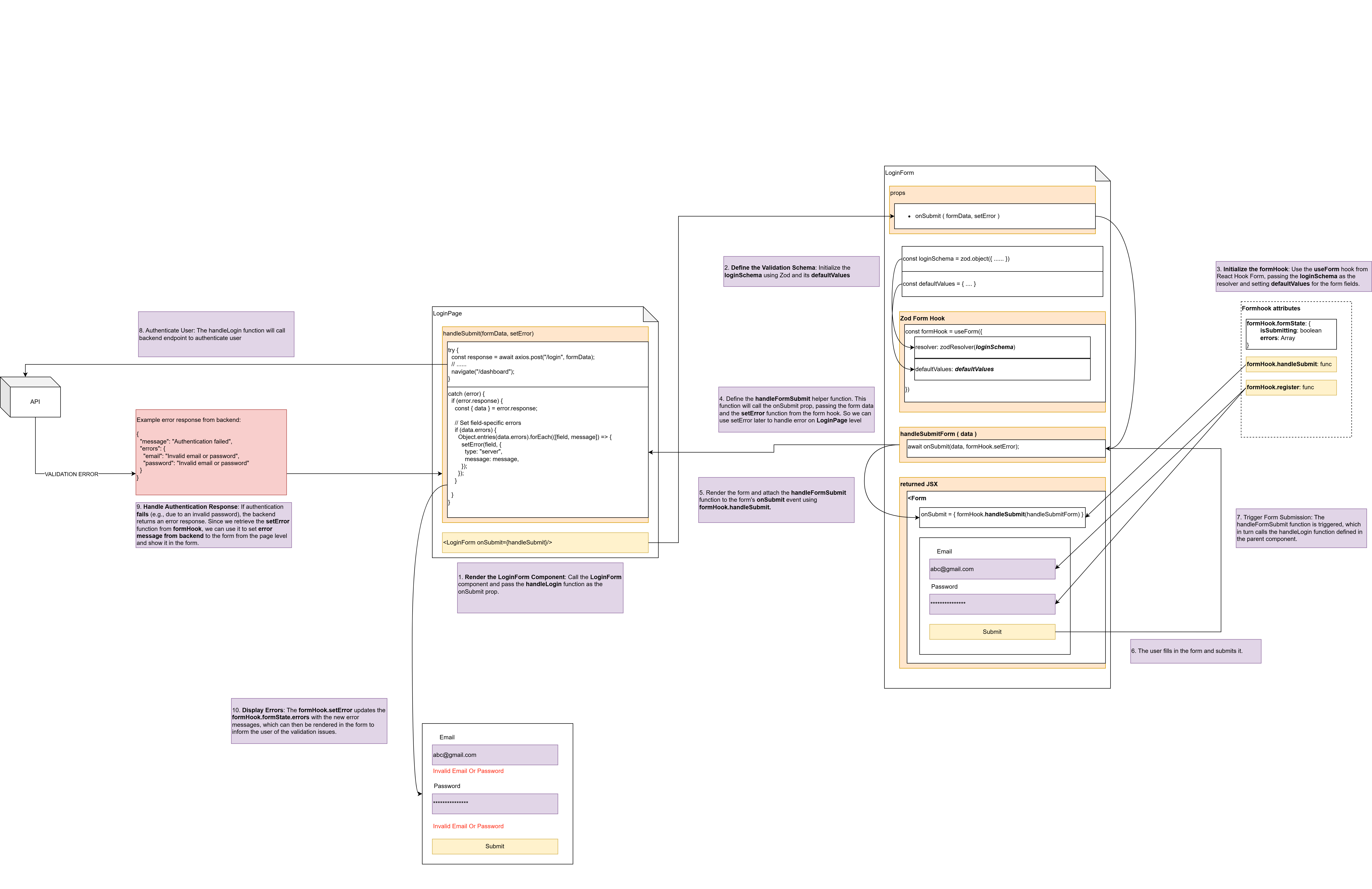
Need a clearer view? You can view this diagram in more detail at draw.io where you can zoom, pan, and explore the flow in greater detail.
Example Implementation
Let's use a login form as an example to demonstrate how to handle backend errors:
Form Component
import React from "react";
import { useForm } from "react-hook-form";
import { zodResolver } from "@hookform/resolvers/zod";
import { z } from "zod";
import { Form, Button, Spinner } from "react-bootstrap";

// Using a simple login schema
const loginSchema = z.object({
  email: z.string().min(1, "Email is required").email("Invalid email address"),
  password: z.string().min(8, "Password must be at least 8 characters"),
});

function LoginForm({ onSubmit }) {
  const formHook = useForm({
    resolver: zodResolver(loginSchema),
    defaultValues: {
      email: "",
      password: "",
    },
  });

  const handleFormSubmit = async (data) => {
    await onSubmit(data, formHook.setError);
  };

  return (
    <Form onSubmit={formHook.handleSubmit(handleFormSubmit)}>
      <Form.Group className="mb-3">
        <Form.Label>Email</Form.Label>
        <Form.Control
          type="email"
          {...formHook.register("email")}
          isInvalid={!!formHook.formState.errors.email}
        />
        <Form.Control.Feedback type="invalid">
          {formHook.formState.errors.email?.message}
        </Form.Control.Feedback>
      </Form.Group>

      <Form.Group className="mb-3">
        <Form.Label>Password</Form.Label>
        <Form.Control
          type="password"
          {...formHook.register("password")}
          isInvalid={!!formHook.formState.errors.password}
        />
        <Form.Control.Feedback type="invalid">
          {formHook.formState.errors.password?.message}
        </Form.Control.Feedback>
      </Form.Group>

      <Button type="submit" disabled={formHook.formState.isSubmitting}>
        {formHook.formState.isSubmitting ? (
          <>
            <Spinner
              as="span"
              animation="border"
              size="sm"
              role="status"
              aria-hidden="true"
              className="me-2"
            />
            Logging in...
          </>
        ) : (
          "Login"
        )}
      </Button>
    </Form>
  );
}

export default LoginForm;
Page Component
import React, { useState } from "react";
import { useNavigate } from "react-router-dom";
import axios from "axios";
import { Alert } from "react-bootstrap";
import LoginForm from "./LoginForm";

function LoginPage() {
  const navigate = useNavigate();
  const [submitError, setSubmitError] = useState(null);

  const handleSubmit = async (formData, setError) => {
    try {
      // Submit login credentials to the backend
      const response = await axios.post("/api/auth/login", formData);

      // Redirect to dashboard on success
      navigate("/dashboard");
    } catch (error) {
      console.error("Error logging in:", error);

      // Handle backend errors
      if (error.response) {
        const { data } = error.response;

        // Example error response from backend:
        // {
        //   "message": "Authentication failed",
        //   "errors": {
        //     "email": "Invalid email or password",
        //     "password": "Invalid email or password"
        //   }
        // }

        // Set field-specific errors
        if (data.errors) {
          Object.entries(data.errors).forEach(([field, message]) => {
            setError(field, {
              type: "server",
              message: message,
            });
          });
        }

        // Set general error message
        if (data.message) {
          setSubmitError(data.message);
        }
      }
    }
  };

  return (
    <div className="container py-5">
      <h1 className="mb-4">Login</h1>

      {submitError && (
        <Alert variant="danger" className="mb-4">
          {submitError}
        </Alert>
      )}

      <LoginForm onSubmit={handleSubmit} />
    </div>
  );
}

export default LoginPage;
Key Concepts
Managing isSubmitting State
The isSubmitting state is automatically managed by React Hook Form when you use the handleSubmit function. This state is available in the formState object returned by useForm:
const formHook = useForm({
  resolver: zodResolver(loginSchema),
  // ...
});
You can use this state to:
- Disable the submit button to prevent multiple submissions
- Show a loading spinner to provide visual feedback to the user
<Button type="submit" disabled={formHook.formState.isSubmitting}>
  {formHook.formState.isSubmitting ? (
    <>
      <Spinner
        as="span"
        animation="border"
        size="sm"
        role="status"
        aria-hidden="true"
        className="me-2"
      />
      Logging in...
    </>
  ) : (
    "Login"
  )}
</Button>
Handling Backend Errors
When submitting form data to the backend, you need to catch and handle any errors that occur. The handleSubmit function from React Hook Form provides a setError function as a second parameter, which you can use to set field-specific errors:
const handleSubmit = async (formData, setError) => {
  try {
    // Submit form data to the backend
    await axios.post("/api/auth/login", formData);

    // Redirect to dashboard on success
    navigate("/dashboard");
  } catch (error) {
    // Handle backend errors
    if (error.response) {
      const { data } = error.response;

      // Set field-specific errors
      if (data.errors) {
        Object.entries(data.errors).forEach(([field, message]) => {
          setError(field, {
            type: "server",
            message: message,
          });
        });
      }

      // Set general error message
      if (data.message) {
        setSubmitError(data.message);
      }
    }
  }
};
Error Response Structure
Backend errors typically include a general message and field-specific errors:
{
  "message": "Authentication failed",
  "errors": {
    "email": "Invalid email or password",
    "password": "Invalid email or password"
  }
}
You can use this structure to:
- Set field-specific errors using the
setErrorfunction - Display a general error message using a state variable
By following these practices, you can create forms that handle backend errors gracefully and provide a good user experience.
sidebar_position: 8
Creating Reusable Form Fields
This guide covers how to create reusable form field components that work with React Hook Form and Zod. By creating these reusable components, you can significantly reduce the amount of boilerplate code in your forms and ensure consistency across your application.
Why Create Reusable Form Fields?
When building a large application with many forms, you'll find yourself repeating similar patterns:
- Creating Form.Group components
- Adding Form.Label elements
- Registering fields with React Hook Form
- Handling validation errors
- Adding Form.Control.Feedback for error messages
This repetition is not only time-consuming but also increases the risk of inconsistencies. By creating reusable form field components, you can:
- Reduce boilerplate code
- Ensure consistent styling and behavior
- Simplify form creation
- Make forms more maintainable
- Improve developer productivity
Basic Reusable Form Field Component
Let's start with a basic reusable form field component that works with React Hook Form:
// components/forms/form-field.jsx
import React from "react";
import PropTypes from "prop-types";
import { useFormContext } from "react-hook-form";
import { Form } from "react-bootstrap";

export const FormField = ({
  label,
  name,
  type = "text",
  required,
  placeholder,
  ...props
}) => {
  const {
    register,
    formState: { errors },
  } = useFormContext();

  return (
    <Form.Group className="mb-3">
      <Form.Label>
        {label}
        {required && <span className="text-danger ms-1">*</span>}
      </Form.Label>
      <Form.Control
        type={type}
        placeholder={placeholder}
        isInvalid={!!errors[name]}
        {...register(name)}
        {...props}
      />
      <Form.Control.Feedback type="invalid">
        {errors[name]?.message}
      </Form.Control.Feedback>
    </Form.Group>
  );
};

FormField.propTypes = {
  label: PropTypes.string.isRequired,
  name: PropTypes.string.isRequired,
  type: PropTypes.string,
  required: PropTypes.bool,
  placeholder: PropTypes.string,
};
Using the Reusable Form Field
Now you can use this component in your forms with much less boilerplate:
// components/forms/applicant-form.jsx
import React from "react";
import { useForm, FormProvider } from "react-hook-form";
import { zodResolver } from "@hookform/resolvers/zod";
import { z } from "zod";
import { Form, Button, Container } from "react-bootstrap";
import { FormField } from "./form-field";

// Define form schema with Zod
const applicantSchema = z.object({
  first_name: z.string().min(1, "First name is required"),
  last_name: z.string().min(1, "Last name is required"),
  display_name: z.string().min(1, "Display name is required"),
  date_of_birth: z.date().refine(
    (date) => {
      const today = new Date();
      const age = today.getFullYear() - date.getFullYear();
      return age >= 18;
    },
    { message: "You must be at least 18 years old" }
  ),
  gender: z.enum(["MALE", "FEMALE"], {
    errorMap: () => ({ message: "Please select a gender" }),
  }),
  contact_number: z
    .string()
    .min(1, "Contact number is required")
    .regex(/^\+?[1-9]\d{1,14}$/, "Invalid phone number"),
  email: z.string().min(1, "Email is required").email("Invalid email address"),
  referral_code: z.string().optional(),
  new_job_notification: z.boolean().default(false),
});

const ApplicantForm = () => {
  const methods = useForm({
    resolver: zodResolver(applicantSchema),
  });

  const onSubmit = (data) => {
    console.log(data);
    // Handle form submission
  };

  return (
    <Container>
      <FormProvider {...methods}>
        <Form onSubmit={methods.handleSubmit(onSubmit)}>
          <FormField
            label="First Name"
            name="first_name"
            required
            placeholder="Enter your first name"
          />
          <FormField
            label="Last Name"
            name="last_name"
            required
            placeholder="Enter your last name"
          />
          <FormField
            label="Display Name"
            name="display_name"
            required
            placeholder="Enter your display name"
          />
          <FormField
            label="Email"
            name="email"
            type="email"
            required
            placeholder="Enter your email address"
          />
          <FormField
            label="Contact Number"
            name="contact_number"
            required
            placeholder="Enter your contact number"
          />
          <Button variant="primary" type="submit">
            Submit Application
          </Button>
        </Form>
      </FormProvider>
    </Container>
  );
};

export default ApplicantForm;
Creating a Form Field Library
For a large application, you might want to create a library of form field components. Here's how you can organize it:
components/
  forms/
    fields/
      index.js
      text-field.jsx
      select-field.jsx
      checkbox-field.jsx
      radio-group-field.jsx
      date-field.jsx
      file-field.jsx
      textarea-field.jsx
      ...
Then you can just import them individually when you need them
import FormField from '@components/forms/fields/form-field';
import SelectField from '@components/forms/fields/select-field';
import CheckboxField from '@components/forms/fields/checkbox-field';
import RadioGroupField from '@components/forms/fields/radio-group-field';
import DateField from '@components/forms/fields/date-field';
import FileField from '@components/forms/fields/file-field';
import TextareaField from '@components/forms/fields/textarea-field';


## Best Practices for Reusable Form Fields

1. **Use FormProvider**: Always wrap your form with FormProvider to make the form context available to all field components.

2. **Keep Components Focused**: Each field component should handle one specific type of input.

3. **Provide Sensible Defaults**: Set sensible default values for common props to reduce the amount of configuration needed.

4. **Use PropTypes**: Define PropTypes for all your components to improve development experience and catch errors early.

5. **Handle Edge Cases**: Consider edge cases like disabled fields, readonly fields, and custom validation.

6. **Support Custom Styling**: Allow passing custom className and style props to customize the appearance of fields.

7. **Document Your Components**: Add JSDoc comments to document the purpose and usage of your components.

8. **Test Your Components**: Write tests to ensure your components work as expected.

## Conclusion

Creating reusable form field components can significantly improve your development workflow and ensure consistency across your application. By leveraging React Hook Form's FormProvider and context API, you can create powerful, flexible form field components that are easy to use and maintain.

Remember that the goal is to reduce boilerplate code while maintaining flexibility. Your reusable components should be simple to use for common cases but still allow for customization when needed.